
1. How Groove works
Four parts. Each one works on its own. Together they take you from "I keep doing this" to "it does itself".
Words you'll see: a recording is a recording (a span of your work, optionally on one topic or site). A groove is an automation built from one. Grooves have inputs (asked for each run, like a search term) and settings (saved with the groove, like your account region). Whatever a groove reads off a page comes back as its results.
2. Install and turn it on
- Open
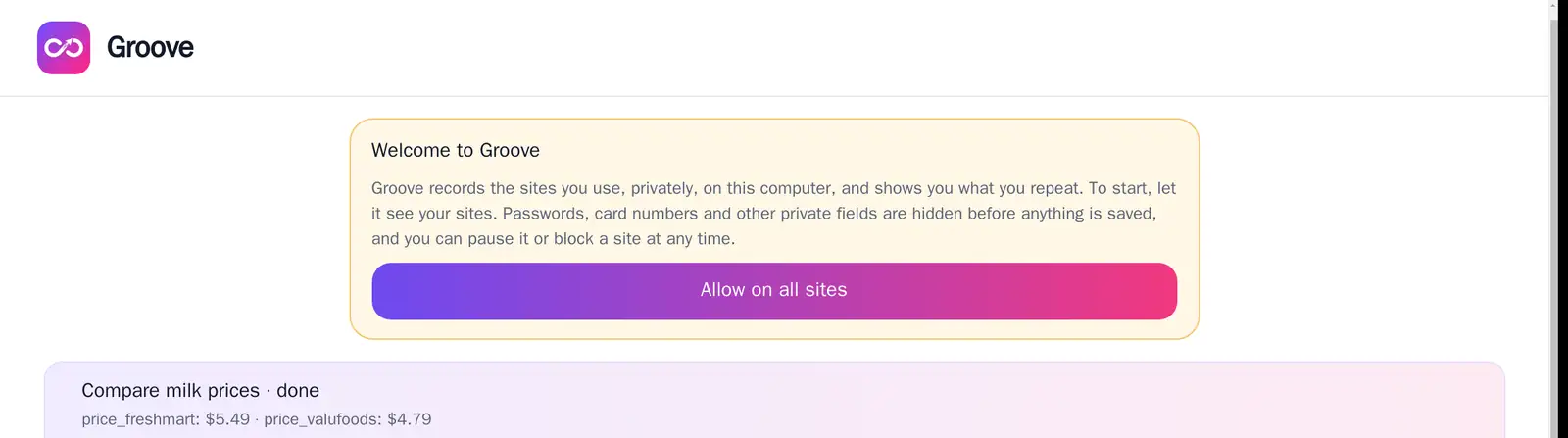
chrome://extensions, turn on Developer mode, click Load unpacked, and choose the Groove folder. (Once Groove is in the Chrome Web Store this is a single click.) - Groove opens its welcome page. Click Allow on all sites, then Allow in Chrome's prompt. Until you do, Groove records nothing at all.
- Pin Groove to the toolbar (the puzzle icon, then the pin) so its button is one click away.
3. Recording
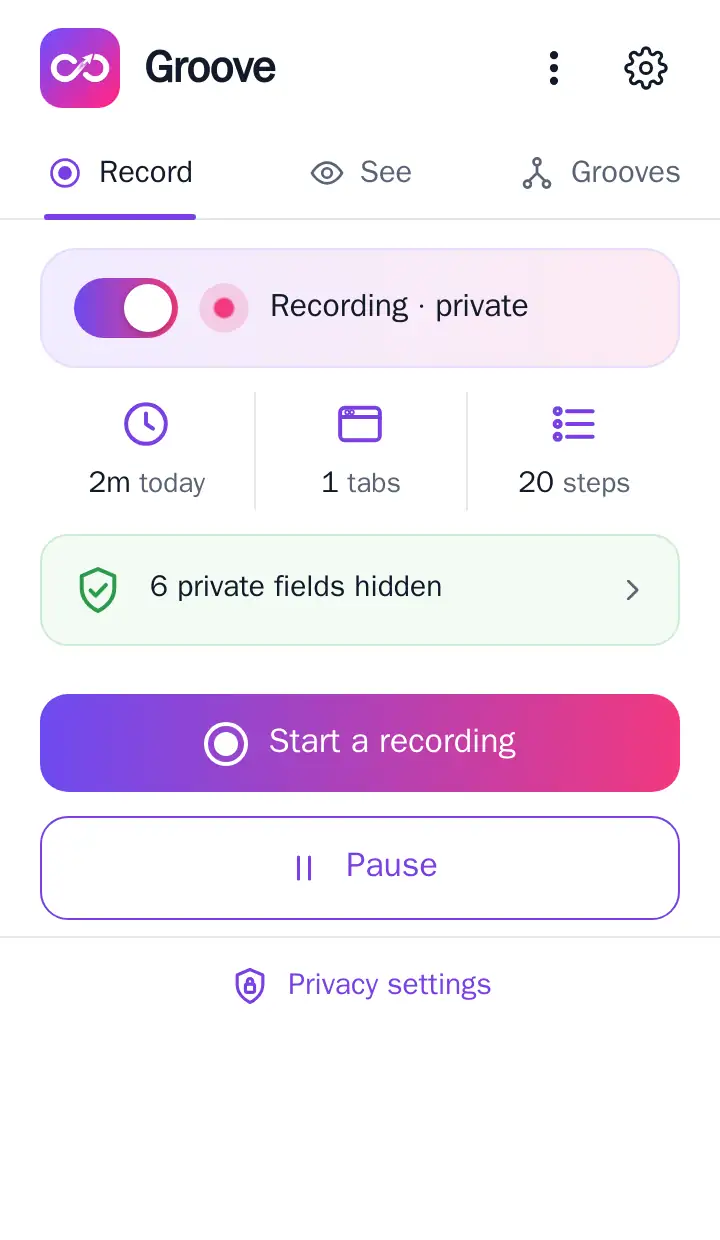
Always-on recording
With the switch on, Groove keeps a rolling recording of everything you do in Chrome: pages, clicks, typing (private fields masked), tabs opening and closing, and the network calls behind them. It keeps the last 7 days by default.
- Pause stops everything until you press Resume.
- The green card counts private fields hidden so far. Tap it to see how hiding works.
- The switch turns always-on recording off. Recordings you start still record.
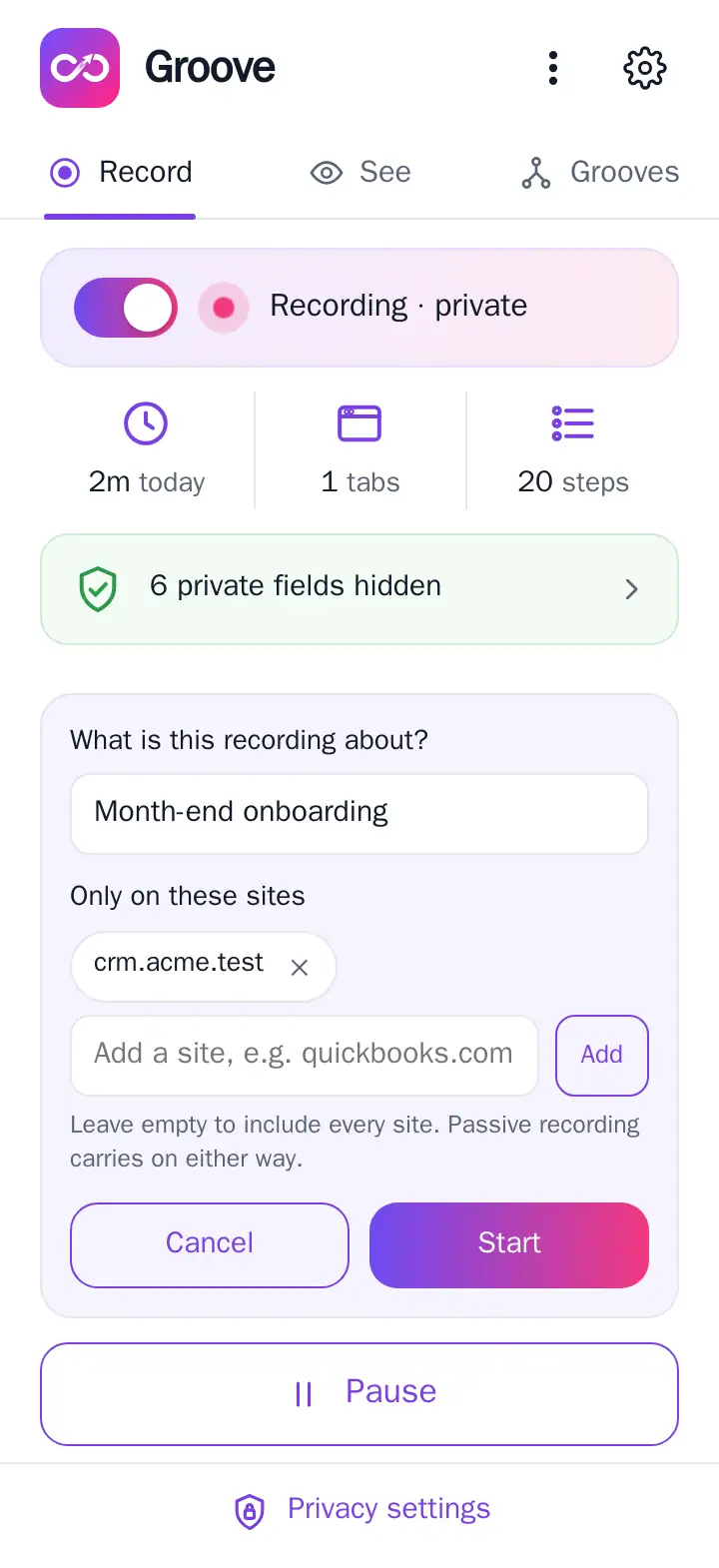
Start a recording on a topic
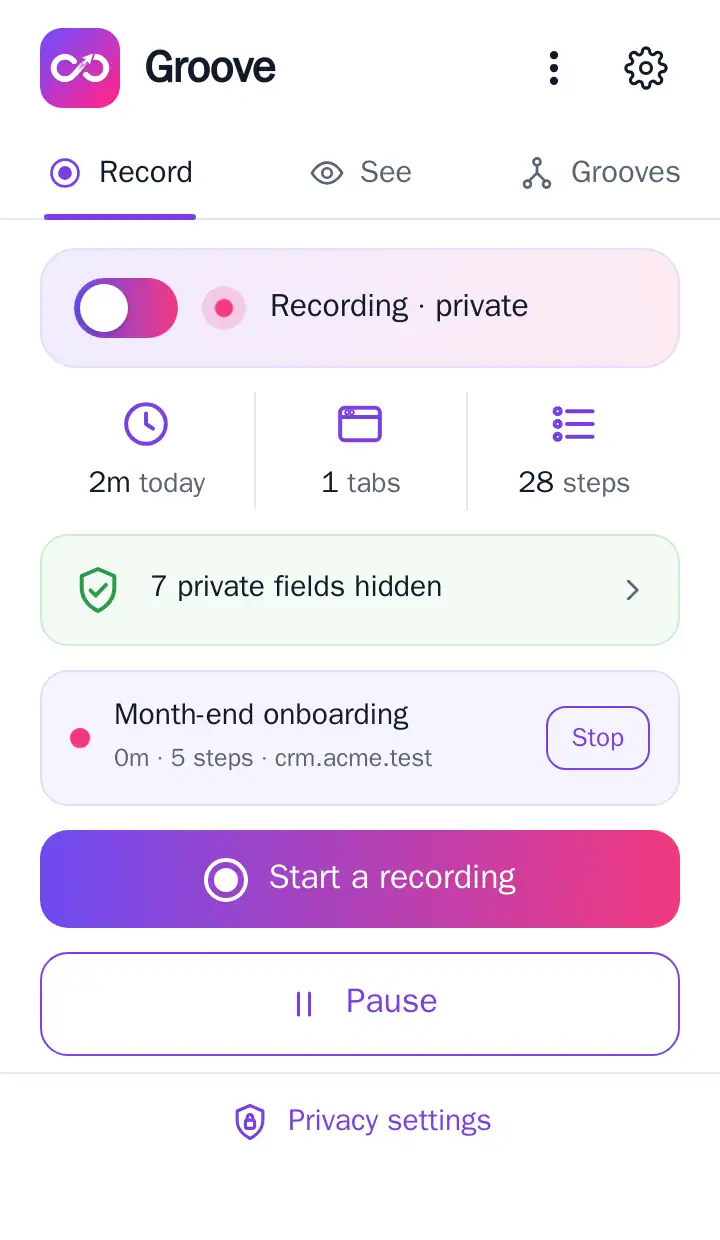
When you're about to do something you may want to automate or hand to an AI, start a recording. Give it a name and, optionally, the sites it covers. Only those sites are kept in it. A recording is a labelled window over the same recording, so it never interrupts always-on recording, and several can run at once.
4. What stays private
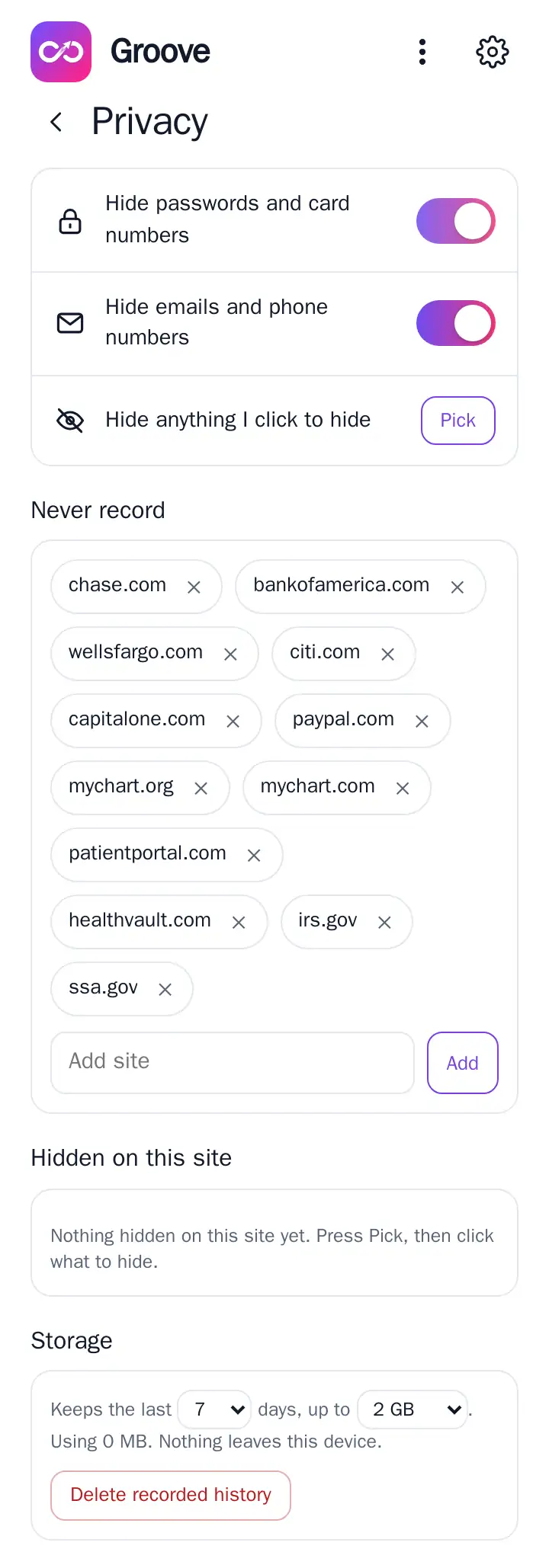
Hiding happens on your computer, before anything is stored. Nothing private exists to be leaked later.
| Always hidden | Passwords, card numbers (checked with the card-number checksum, so order numbers aren't hidden by mistake), card codes, Social Security and tax numbers, bank account and routing numbers, one-time codes, API keys and tokens, and payment frames from Stripe, PayPal and the like. |
|---|---|
| Your choice | Email addresses and phone numbers (on by default). |
| Pick to hide | Press Pick, then click any part of a page (a balance, a patient name, a side panel). It's hidden on that site from then on. |
| Never record | Sites Groove ignores completely. Banks and health sites are on the list from the start, and you can add any site. |
| Storage | How many days to keep (1 to 30) and how much space to use. Older recording is deleted automatically. |
Agents never get screenshots, because pixels can't be reliably hidden. They get the same masked steps and text you see.
5. Review a recording, and add notes
Open the library (See → All recording, or the Edit link on any groove) and choose a recording. You'll see every step in plain language.
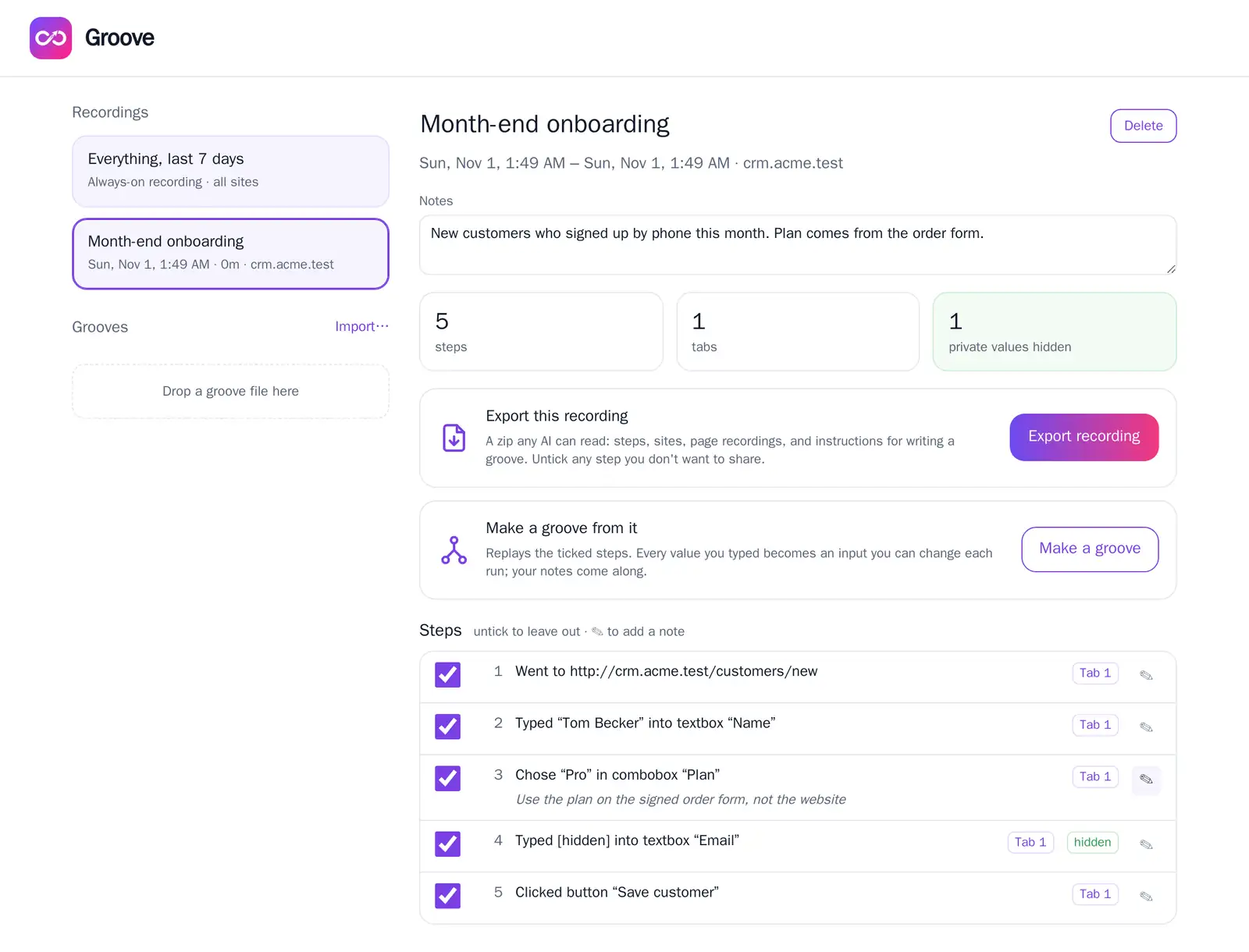
- Notes: say what you were doing and why ("customers who signed up by phone"). Press ✎ on any step to note something about it ("use the plan from the signed order form"). Notes go into exports, so an AI reads your intent, and into grooves made from the recording.
- Untick any step you don't want to share or automate.
- Export recording downloads a zip any AI can read (see Use it with an AI agent).
- Make a groove turns the ticked steps into a groove. Every value you typed becomes an input you can change each run.
6. See what you repeat
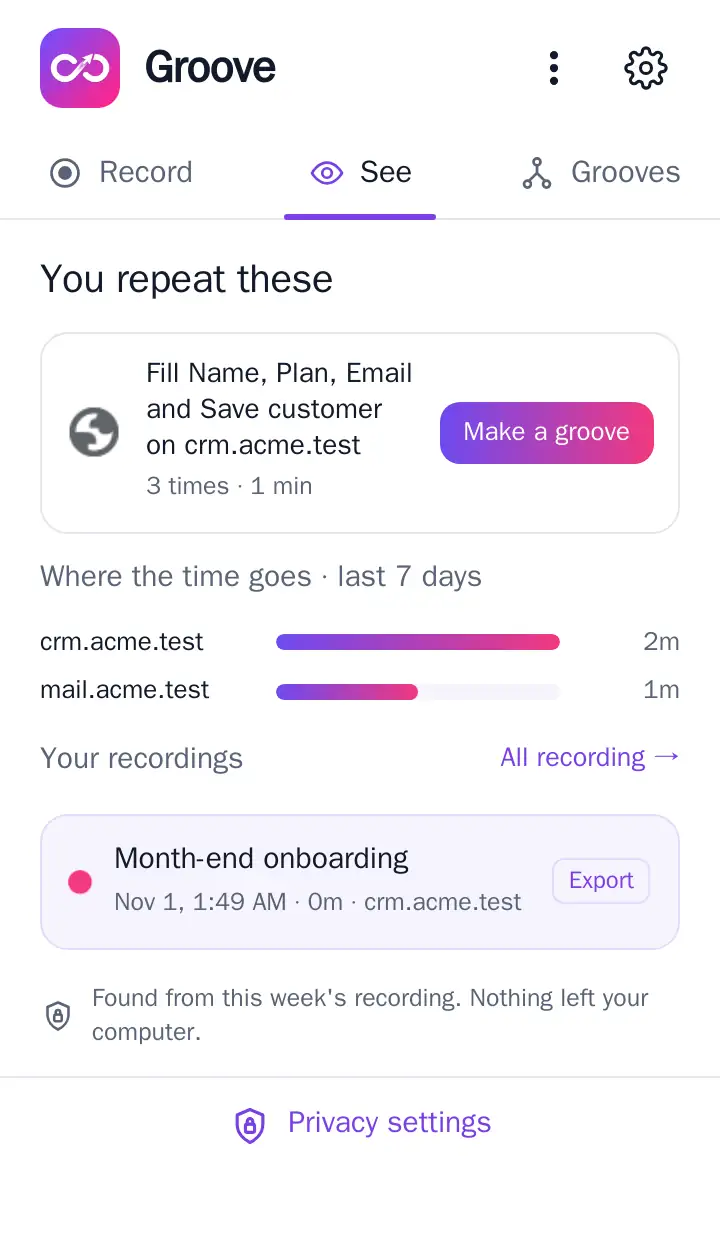
Groove looks through the last week for sequences you've done at least three times, ignoring the values you typed, so "add customer Maria" and "add customer Dev" count as the same routine. Each one shows how often you did it and how long it took. The values that changed between repeats become the groove's inputs.
Make a groove opens the new groove in the library. Where the time goes shows active minutes per site. All of this is worked out on your computer; nothing is sent anywhere.
7. Grooves: edit
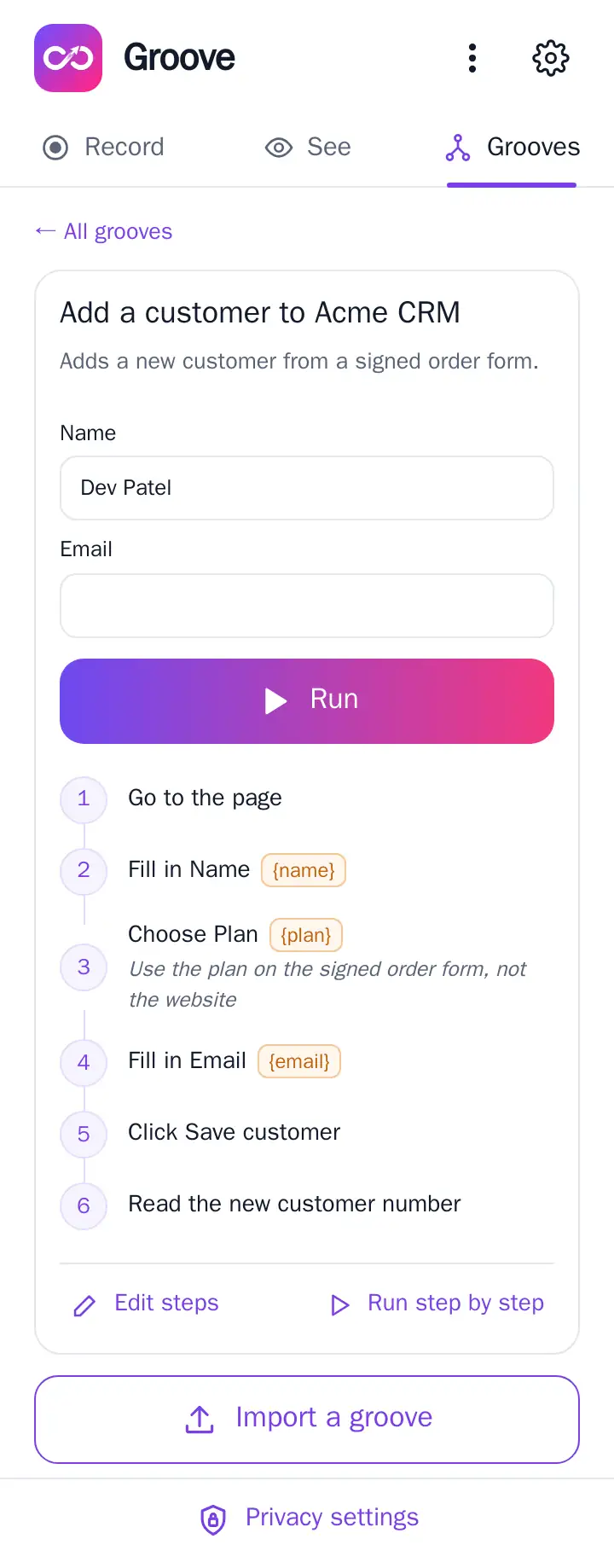
A groove is a list of steps Groove can replay: open a page, click, type, choose, press a key, wait for text, check text is shown, read a value, collect a list, notify you. Open any groove in the library to edit it.
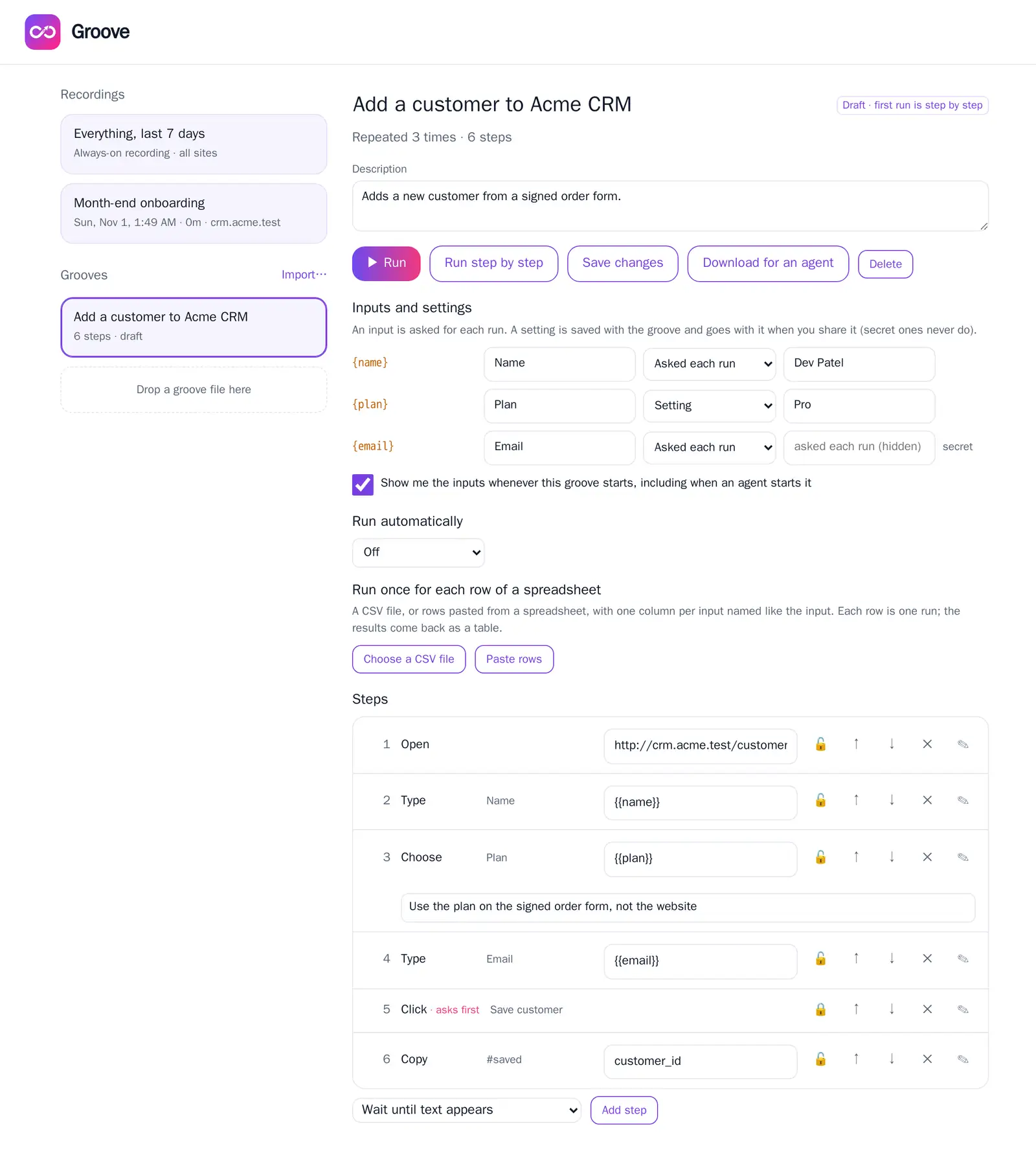
Inputs and settings
Each {value} in a groove is either:
- Asked each run, an input: the search term, the customer's name. Groove offers the last value you used.
- Setting: saved once for you, like your region or a folder name. Saved with the groove, and included when you share it. Secret settings are kept on your computer and never shared.
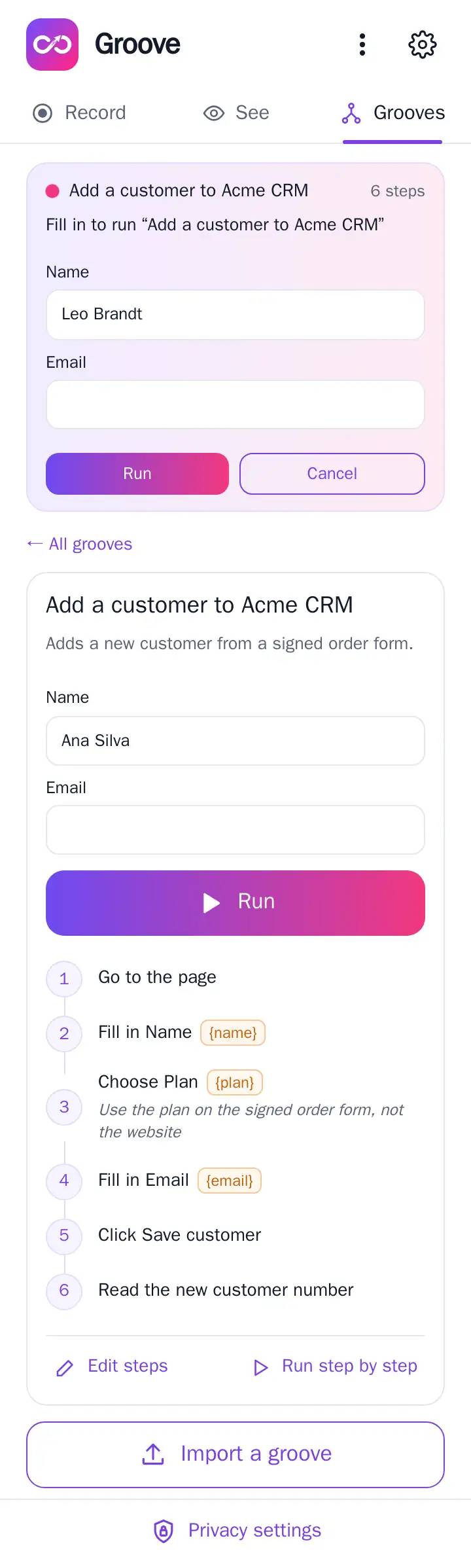
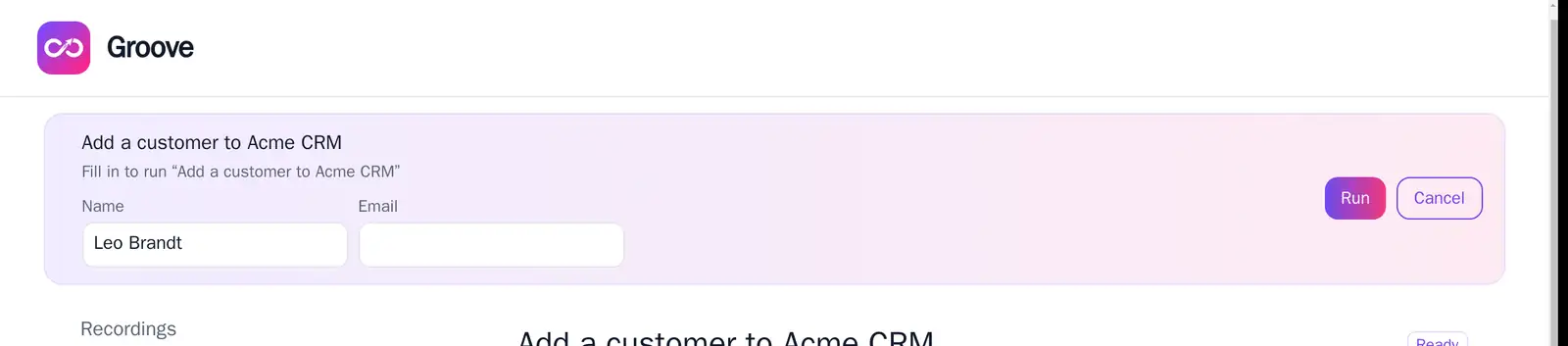
Show me the inputs whenever this groove starts (on by default) means you see a short form even when an agent or the library starts the groove. Turn it off for grooves that should just run.
Steps
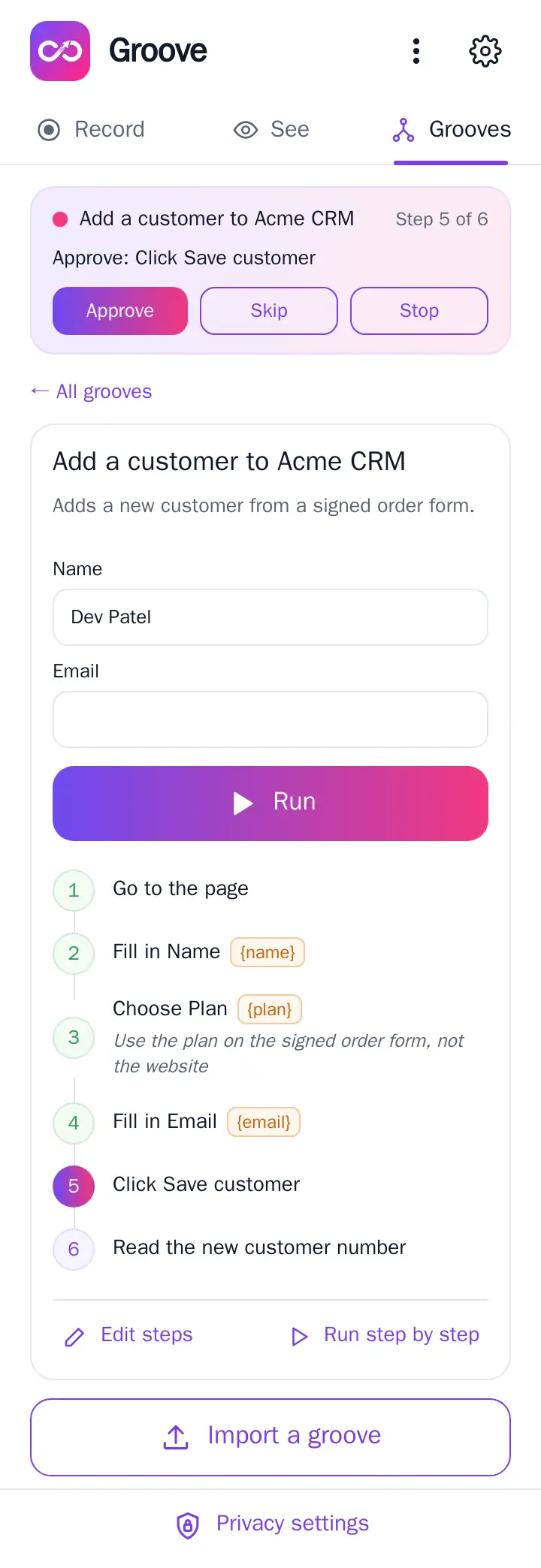
- 🔒 Ask before this step: the run stops and waits for your approval. Groove sets this for you on steps that save, send, pay, delete or submit. Keep it on anything you'd regret.
- ↑ ↓ ✕ reorder or remove a step. ✎ adds a note.
- Add step: wait until text appears, check text is shown, pause, notify me when the page shows something, or a plain note.
- Download saves the groove as a file to share; Import (popup or library) loads one, including grooves an AI wrote for you.
8. Grooves: run
The first run is supervised
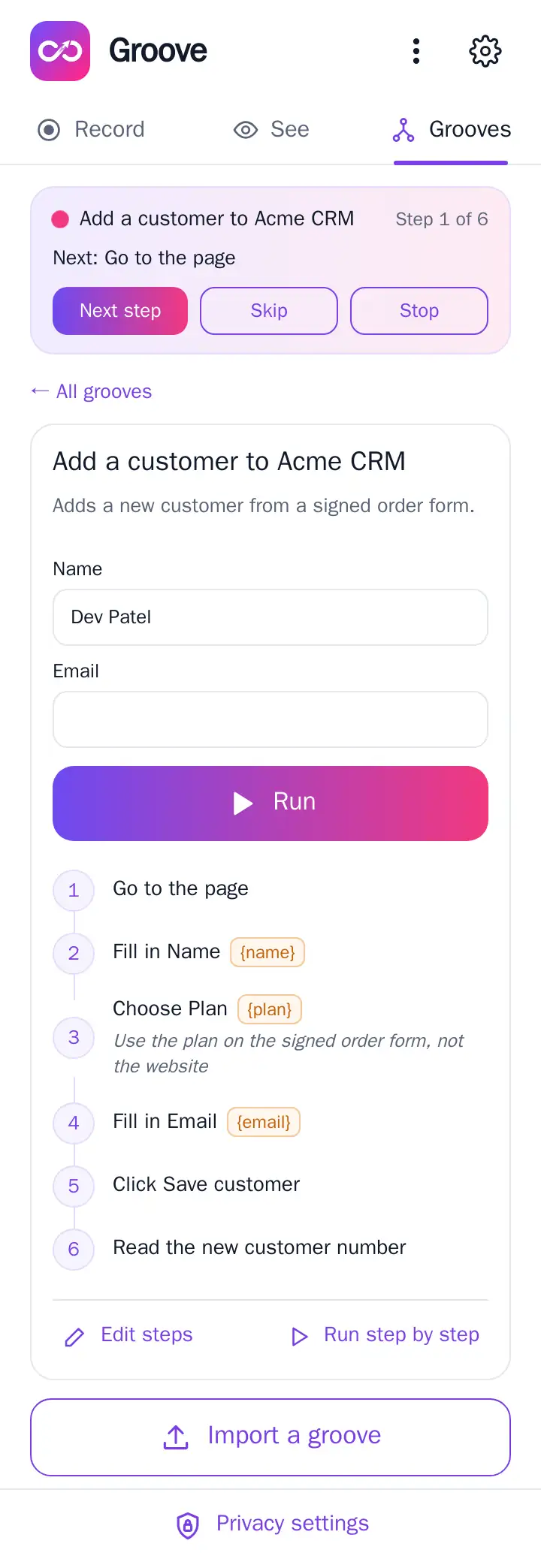
A new groove is a draft. Its first run goes step by step: Groove shows what it's about to do and waits for Next step. After one clean run, the groove is ready and runs straight through (stopping only at 🔒 steps). You can always choose Run step by step again.
When something goes wrong, Groove stops
Groove checks that every click actually did something: the page changed, a request went out, or the address changed. If a step "worked" but nothing happened, it stops and asks instead of carrying on blindly. If an element can't be found, it says which one. You can Retry, Skip, or Stop.
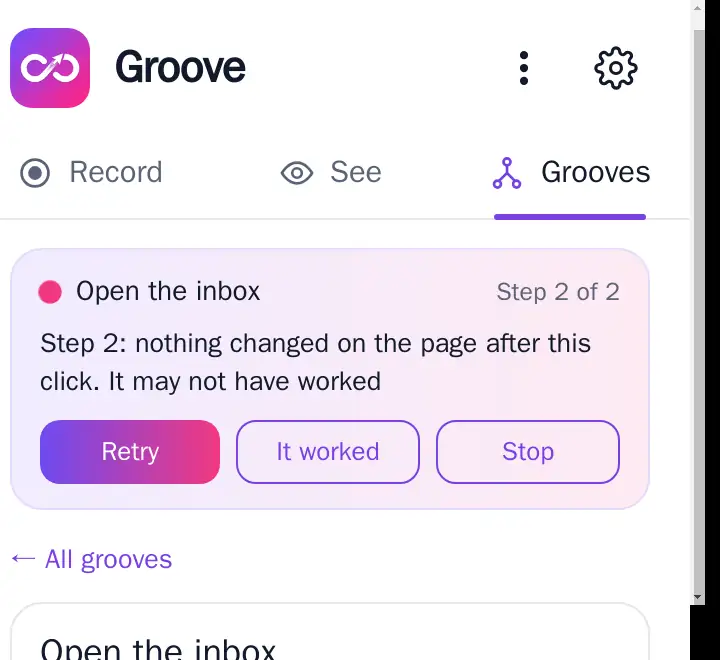
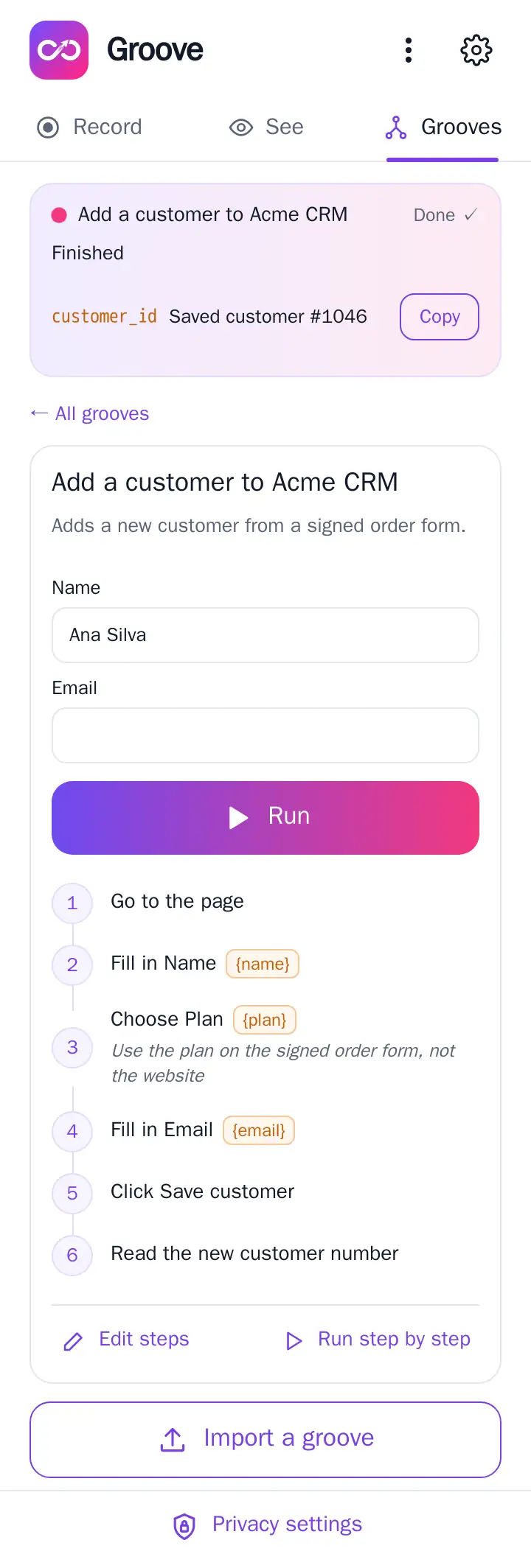
If a run needs you while the popup is closed, Groove's icon shows a badge and the popup opens itself where Chrome allows it. The library shows the same run at the top of the page, so you can answer it there too.
9. Collect lists from pages
For headlines, search results, listings, prices or tickets: open the page, open Groove, go to Grooves and press Collect a list from this page. Point at one item in the list. Groove outlines every item like it, and clicking collects them all into a new groove.
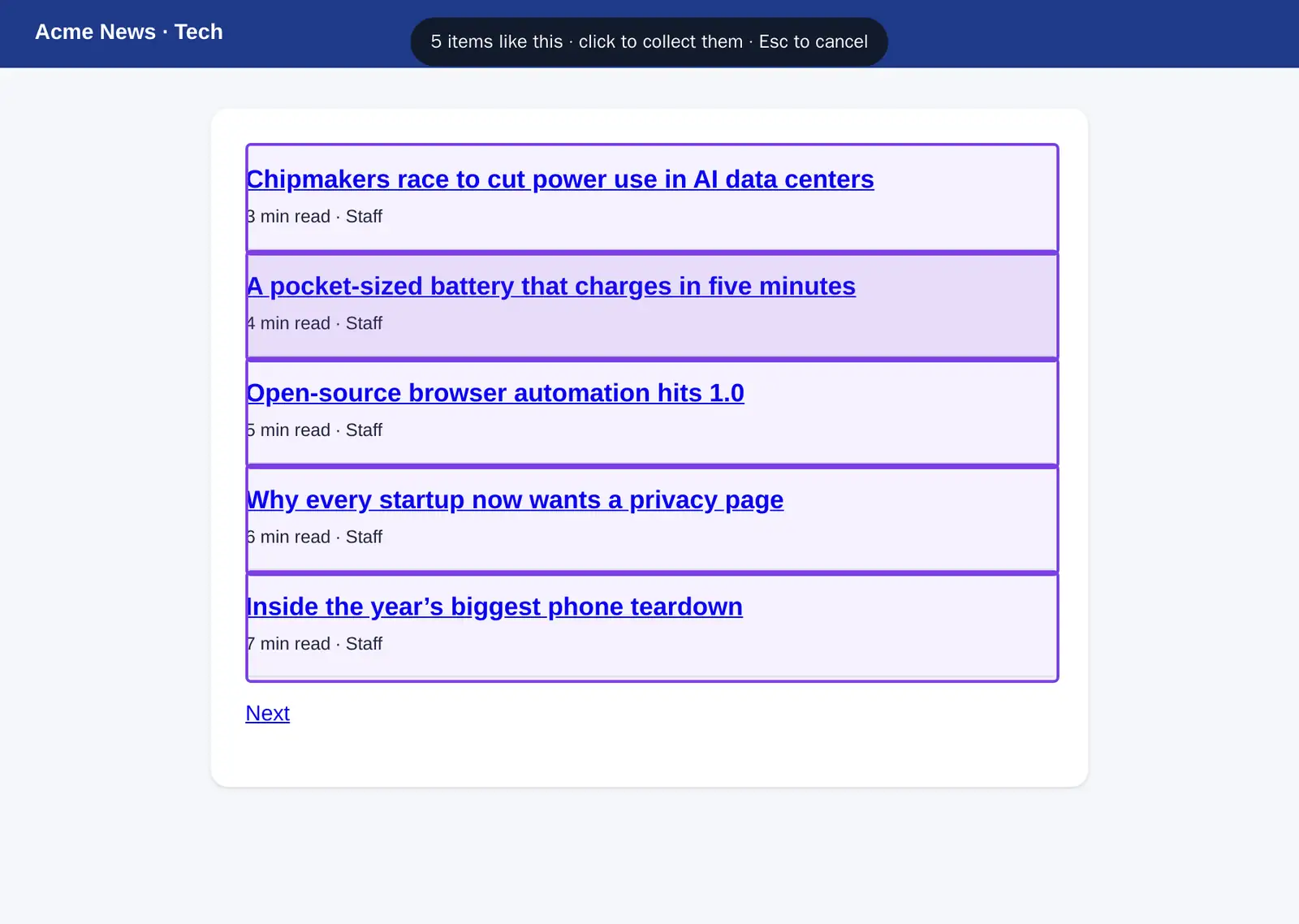
Each item becomes a row with a title, a link, a price if one shows, and its text. If the page has a Next link, Groove finds it so the groove can page through. In the editor you can set how many pages to read and tick Only items not seen before: then each run brings back only what's new since the last one. That's the core of a news, job or listing watch.
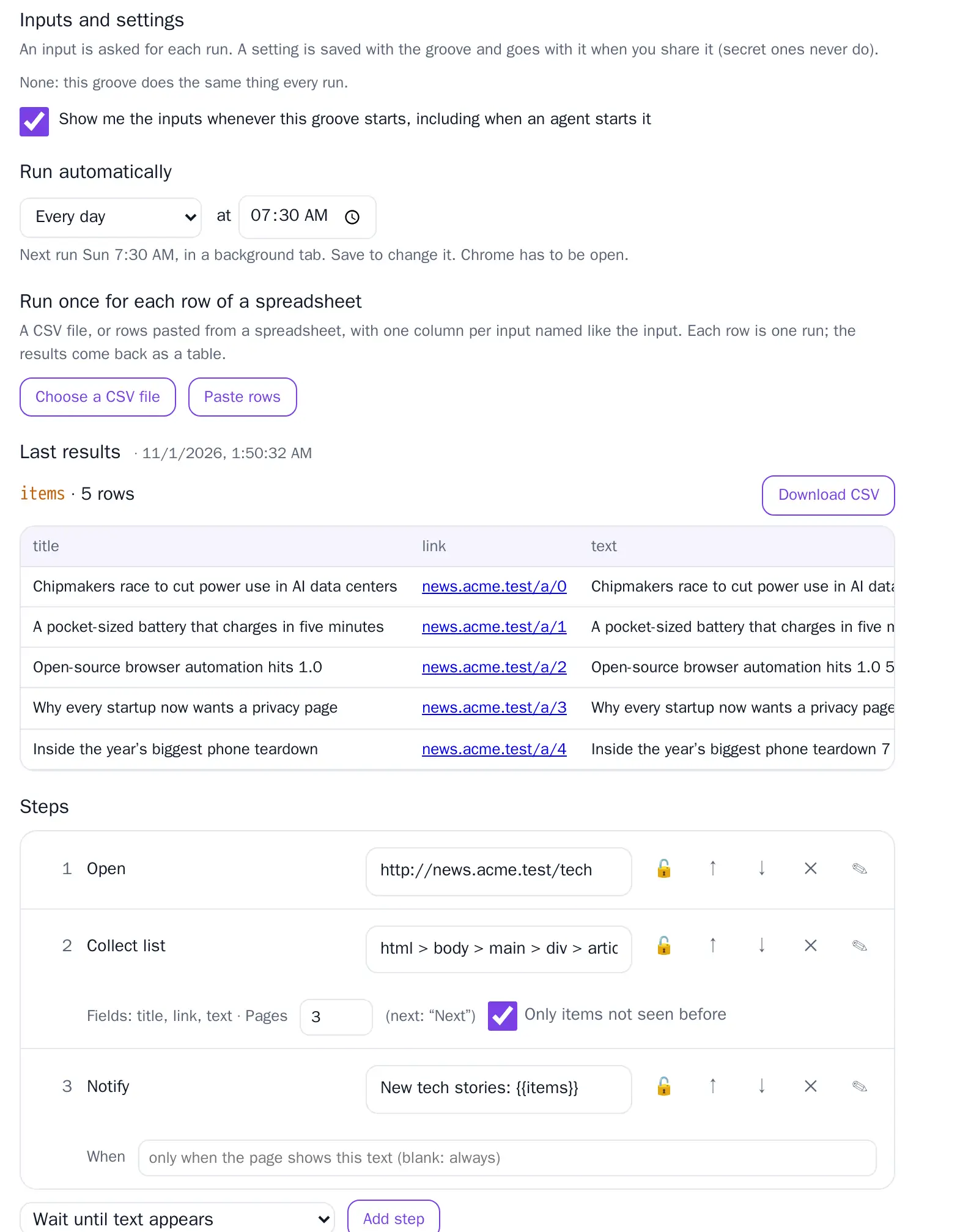
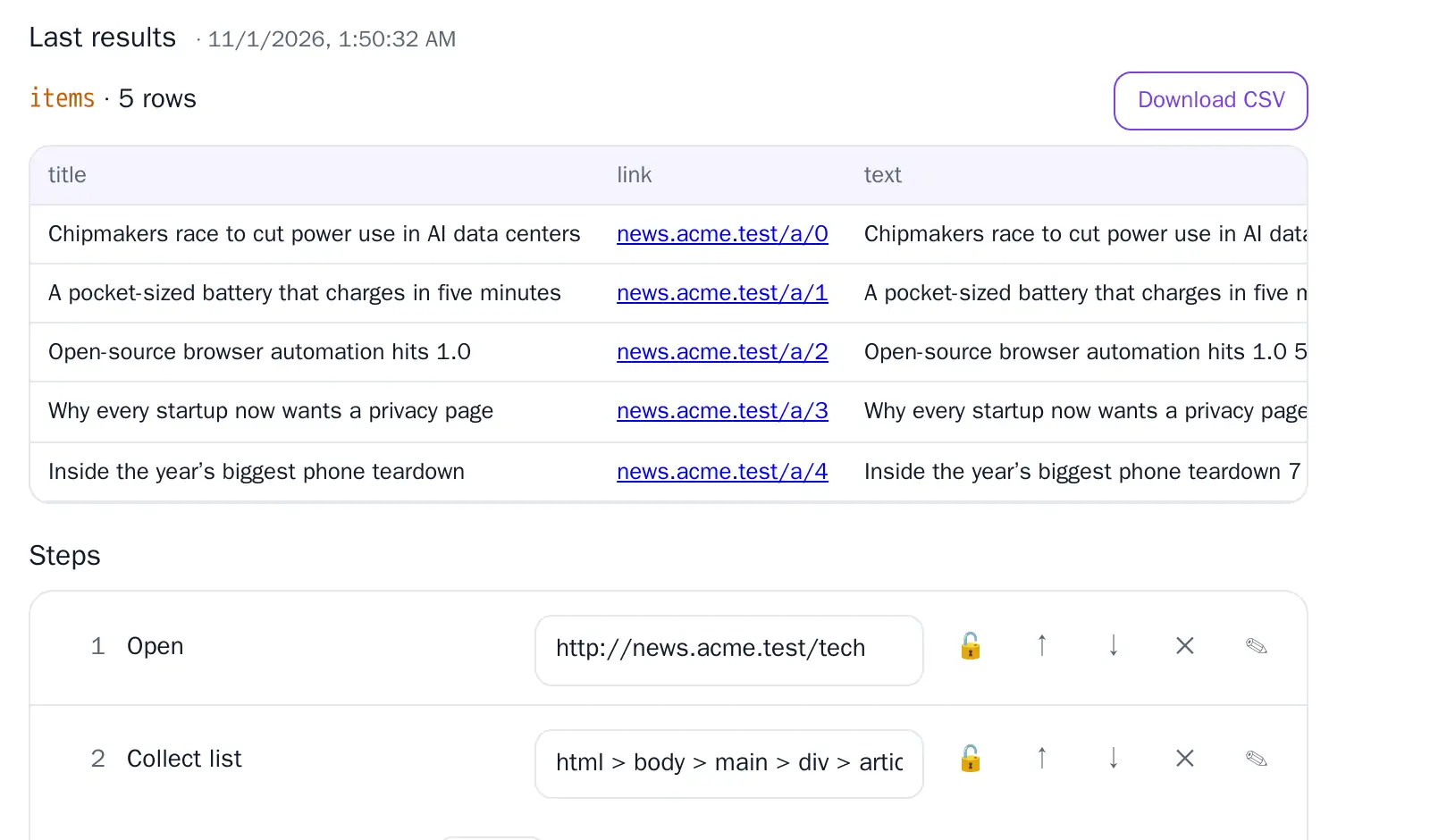
Results appear when the run finishes, and on the groove's page as a table under Last results. Download CSV gives you a file that opens in Excel, Numbers or Google Sheets.
10. One run per spreadsheet row
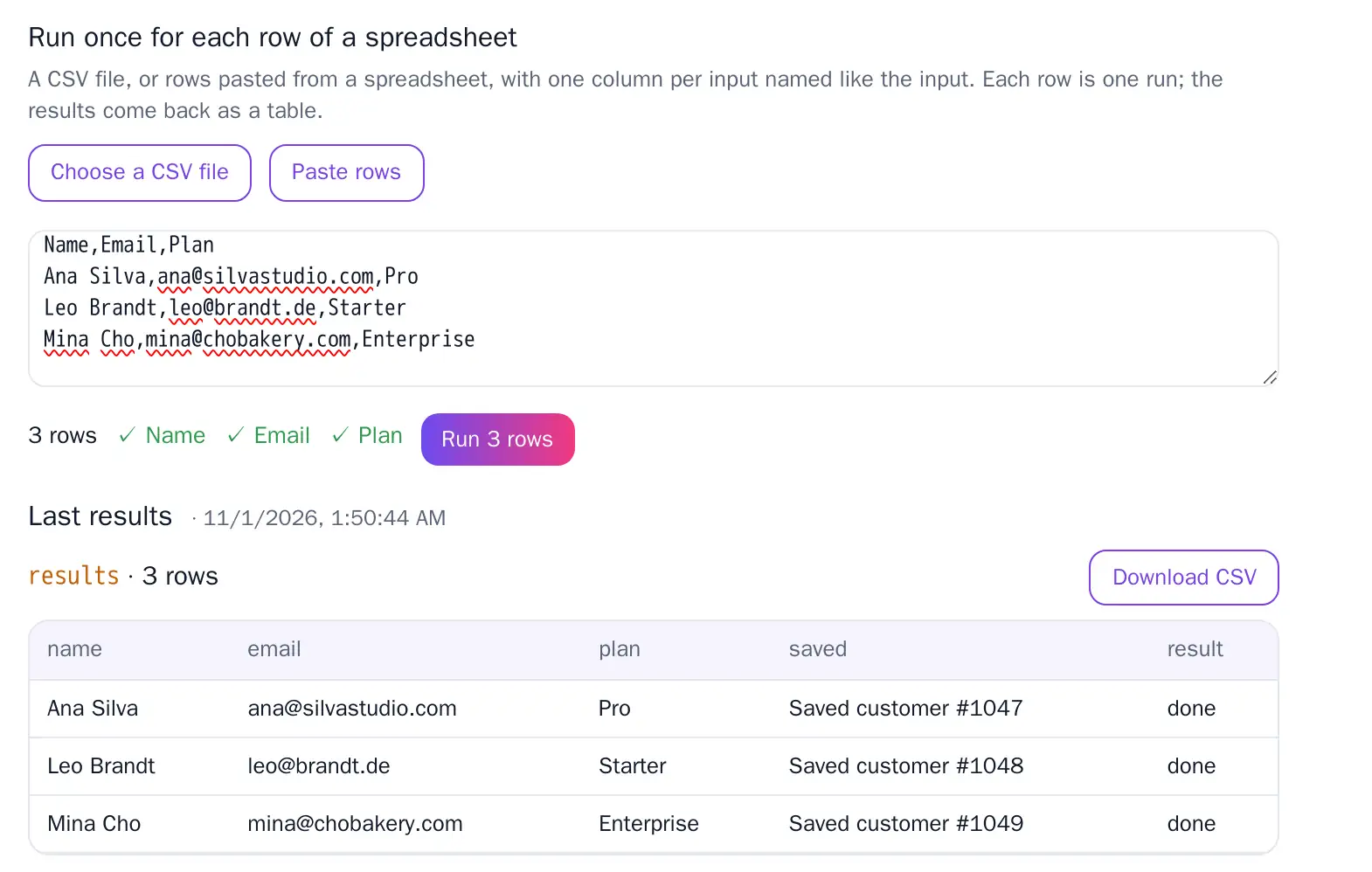
To do the same thing for many records (update 40 customers, check 12 order numbers, enter a stack of invoices), put the values in a spreadsheet with one column per input, named like the input. On the groove's page, under Run once for each row of a spreadsheet, choose the CSV file or paste the rows. Groove matches columns to inputs and shows a check mark for each one it found. Press Run: one run per row, with the results as a table you can download.
11. Schedules and alerts
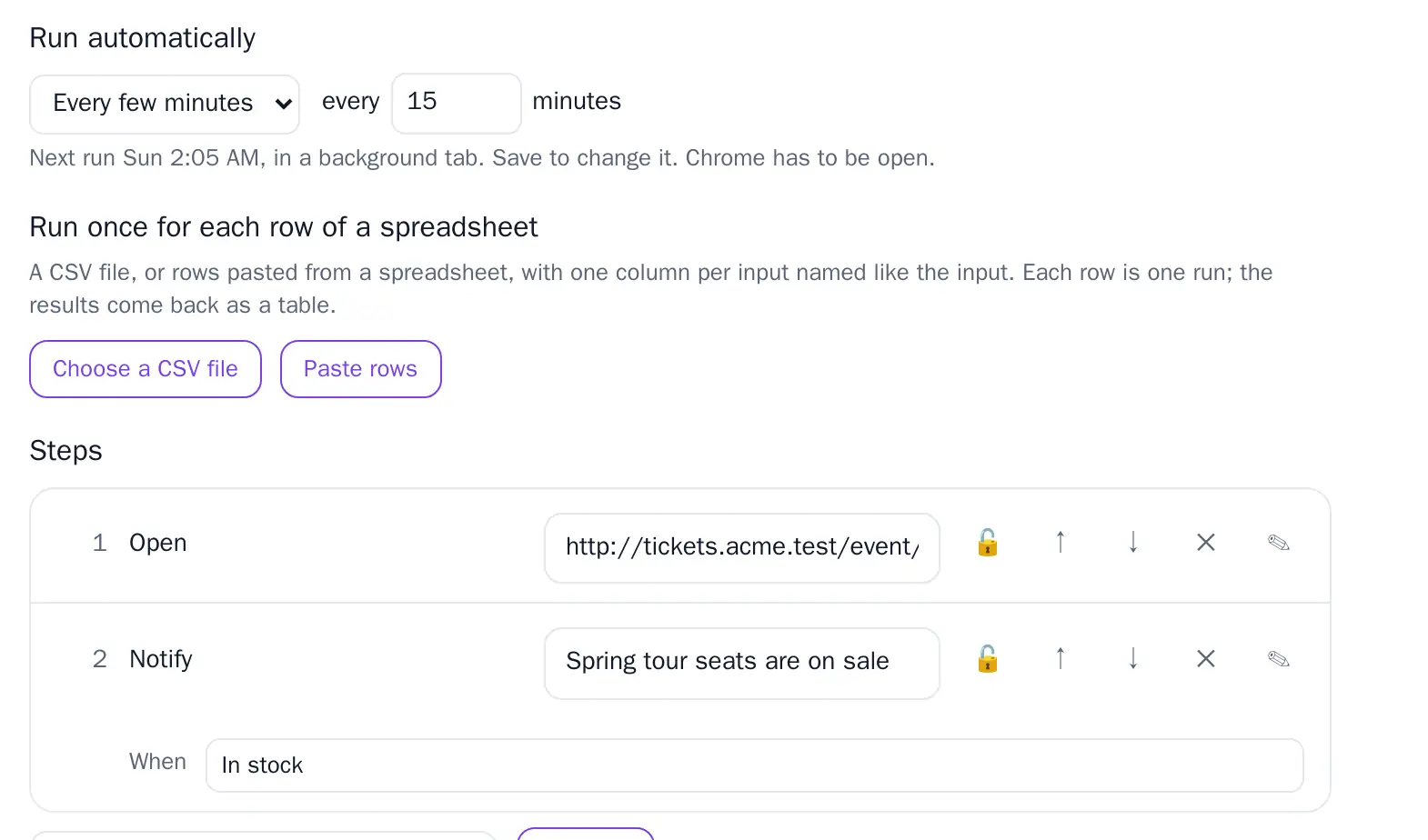
Under Run automatically, choose every few minutes, every hour, every day, or every weekday at a time. Scheduled runs:
- work in a background tab and close it afterwards, so they don't interrupt you;
- use each input's last value (or default), so run the groove once yourself first;
- only run once the groove is ready (one clean run), and only while Chrome is open;
- notify you if they need you, fail, or (for lists set to only new) find something new.
The Notify me when the page shows… step sends a Chrome notification, optionally only when some text is on the page ("In stock", "Add to cart") or a list has rows. Clicking the notification opens the groove.
12. Examples
Each of these is built from the pieces above. Record it once (or pick a list), then adjust in the editor.
News watch
Collect a list · only new · schedule · notify
- Open a news site's section page (or a search for your topic). Groove → Grooves → Collect a list from this page, click one headline.
- In the editor: pages 2 or 3, tick Only items not seen before, Run automatically every day at 7:30.
- Add Notify me with the message "New articles: {{items}}". Each morning you get a notification and a table of just the new headlines with links. Add one groove per site, or ask your AI (connected over MCP) to run them all and summarise.
Scrape a directory or search results across pages
Collect a list · pages · CSV
- Search the directory (suppliers, listings, products), open the results, and collect the list.
- Set pages to however many you need (up to 50). Run it, then Download CSV.
- Want the same search with different terms? Make the search box an input: record yourself searching once, make a groove from that recording, and add the collect step at the end.
Bulk data update in a web app
Make a groove · spreadsheet rows · 🔒
- Start a recording, update one record by hand (open it, change the fields, save), stop the recording.
- Make a groove. The values you typed become inputs:
customer_id,status,owner. - Run it on one record step by step. Then paste your spreadsheet rows and run them all. Leave 🔒 on Save while you're trusting it, and turn it off when you're sure.
Monthly reports from your apps
Record · settings · schedule
- Record yourself opening the report in Stripe, QuickBooks or your analytics tool, setting the date range, and clicking Export. Groove sees the download.
- Make the date range inputs, or settings if they're always "last month". For a weekly report, set Run automatically to a day and time; for monthly ones, run it from the popup on the 1st (a monthly schedule isn't in this version yet).
- The export lands in your Downloads folder like any other file.
Ticket or stock availability
Schedule · notify when the page shows text
- Open the event or product page. Make a groove with one step, Open the page (record yourself visiting it, or import the two-step example below).
- Add Notify me when the page shows… "Add to cart", or tick not on a "Sold out" check.
- Run automatically every 15 minutes. Groove notifies you the moment it changes.
{ "format": "groove", "version": 1, "name": "Concert tickets",
  "schedule": { "every": "minutes", "n": 15 },
  "steps": [
    { "action": "goto", "url": "https://tickets.example.com/event/123" },
    { "action": "notify", "message": "Tickets are on sale", "if": { "text": "Add to cart" } } ] }
Shopping, with you approving the payment
Record · inputs · 🔒 on pay
- Record a normal order: search, choose size, add to cart, go to checkout. Stop before paying, or pay as usual. Card numbers are never recorded.
- Make a groove. The search term and size become inputs. The final Place order step is locked 🔒 automatically.
- Each run fills the cart and stops at checkout for your approval. Groove never pays without you pressing Approve.
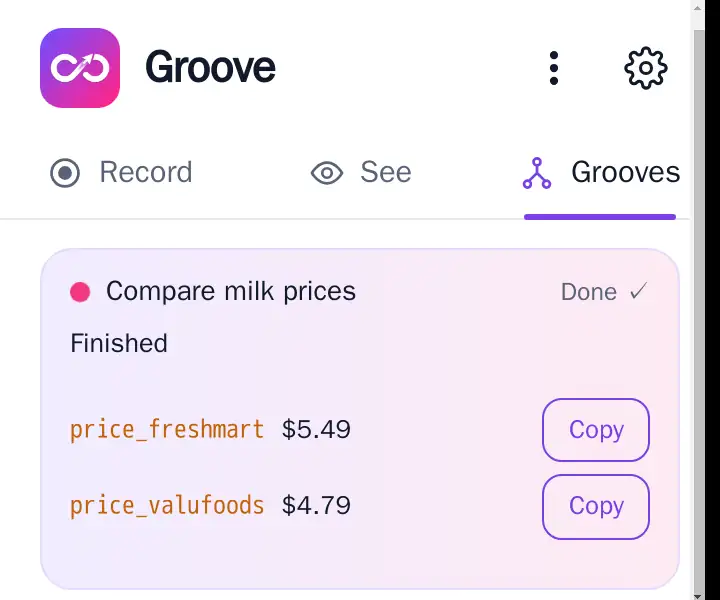
Grocery comparison
Record · one input across several stores · results side by side
- Start a recording. Search for the same item at each store you use, one after another, and each time select the price and copy it (⌘C or Ctrl+C). Stop the recording.
- Make a groove. The item becomes an input, and each copy becomes a value the groove reads, named after its store. Rename them in the editor if you like (
price_shaws,price_costco). If the stores need different search terms, make one input per store. - Run it with any item: the results list each store's price side by side. Run it from a spreadsheet of your shopping list to price the whole basket.
Daily stand-up notes
Collect a list · settings · agent
- Open your tracker filtered to "assigned to me, updated yesterday" and collect the list.
- Run it each morning, or let your AI run it over MCP and write the update from the rows.
13. Use it with an AI agent
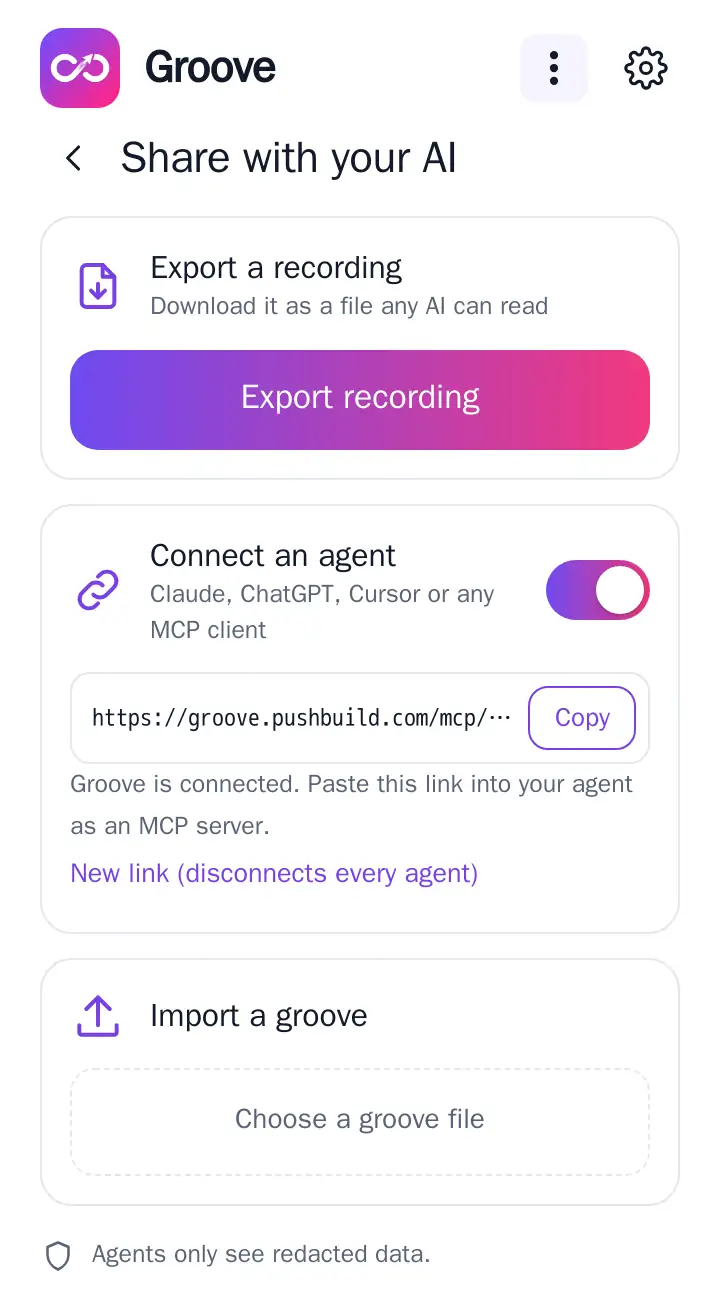
Export a recording (any AI)
Export recording downloads a zip: the steps in plain language and as data (steps.jsonl, with several ways to find each element), network calls without their contents, the page recordings, your notes, the groove format (groove.schema.json) and instructions for the agent (skills/groove/SKILL.md). Give it to Claude, ChatGPT or any coding agent and ask it to write a groove; import the file it gives you.
Hand a groove to an agent, get a better one back
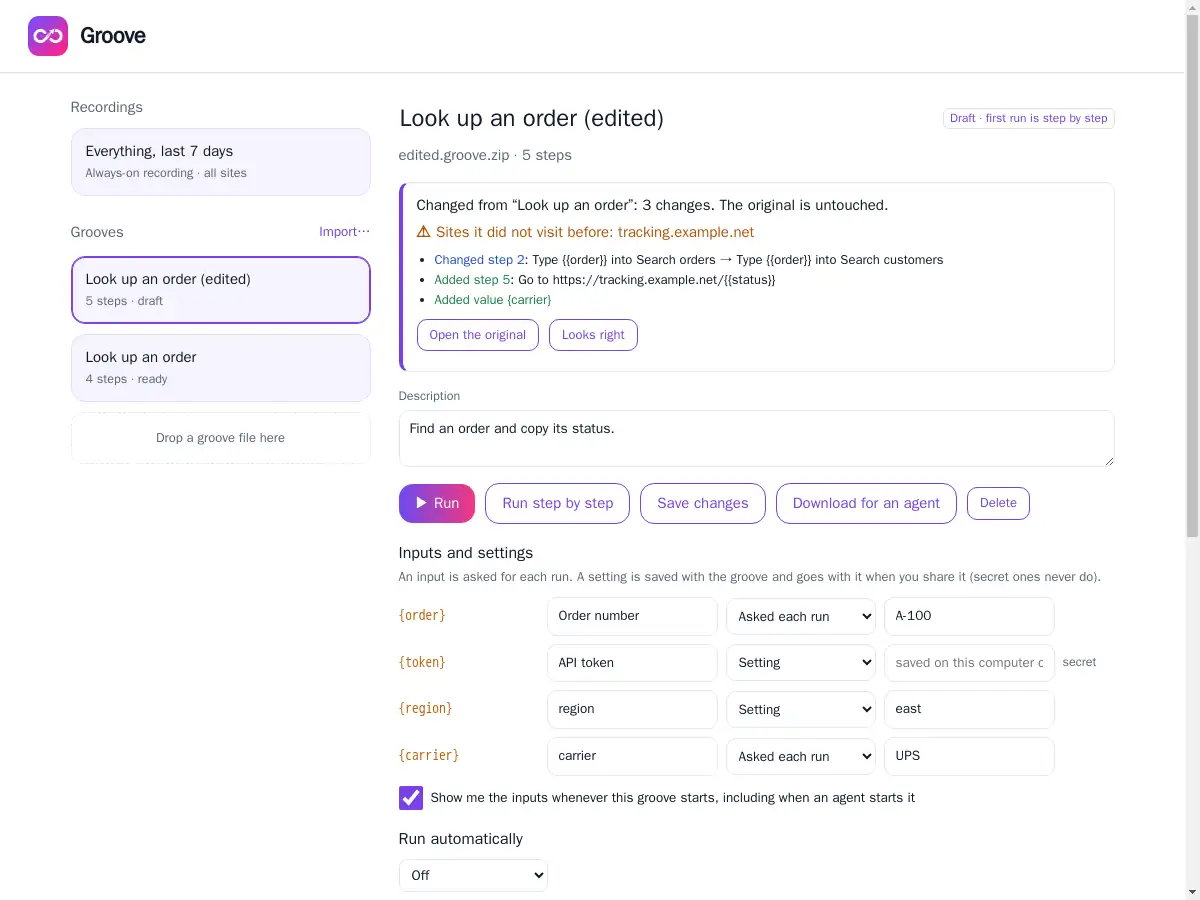
On any groove, Download for an agent saves a .groove.zip: a plain-language README (what the groove does, its inputs and settings, your step notes), groove.json, the format and the agent instructions. Results, past values and secret settings are never in it. Ask your agent for a change (“search by customer instead”, “also check the tracking page”) and import what it gives back: the zip or just groove.json.
The edit arrives as a new draft beside the original, which stays as it was. Groove lists every added, removed and changed step, and warns you about any site the groove did not visit before. Press Looks right once you have checked it; its first run is still step by step.
Connect an agent (MCP)
Turn on Connect an agent and copy the link. Add it to your agent as an MCP server, for example in Claude Code:
claude mcp add --transport http recording https://groove.pushbuild.com/mcp/<your link>
The agent can then:
| search_history | search your recent recording (masked) |
|---|---|
| list_recordings / get_recording | read a recording, notes included |
| find_repeats | see the routines Groove found |
| read_page | read the current page (masked, no screenshots) |
| list_grooves / get_groove | see your grooves, or read one in the portable format (no results or secrets) |
| propose_groove | propose a new or changed groove: it arrives as a draft, with its changes listed |
| run_groove | run a ready groove and get its results, lists included |
14. Your data
- Recordings, recordings, grooves and results live in Chrome on your computer. Removing the extension deletes them.
- The agent relay at
groove.pushbuild.comonly passes messages between your agent and your browser. It stores nothing. - Nothing is sent to Pushbuild or anyone else unless you export a file or connect an agent.
15. Questions
A groove stopped with "nothing changed on the page".
The click ran but the page didn't react. Usually the site was still loading, or the button moved. Press Retry; if it keeps happening, add a Wait until text appears step before it.
"Could not find button 'Save'".
The site changed its layout or wording. Edit the step, or record the routine again and make a new groove.
My schedule didn't run.
Chrome must be open, and the groove must be ready (one clean run). The groove's page shows the next run time.
Does Groove slow Chrome down?
It records in small compressed batches and does its analysis on demand. If a site feels slow, add it to Never record.
Can I use it on sites I log in to?
Yes. Grooves run in your own browser with your own logins. Groove never stores your passwords, so if a site logs you out, sign in again and rerun.